This assumes Thunderbird is already installed and set up for email. Lookup your email provider and see how they have you set it up for your email provider.
How to Encrypt Emails Using Thunderbird.
Note: It's preferable to do this from a computer/email setup you are in control over that you plan to send/receive these emails with, and not a phone.
To setup encryption with Thunderbird:
(1st) Create a public/private key pair:
Thunderbird Menu > 'Tools' > 'OpenPGP Key Manager' > ...
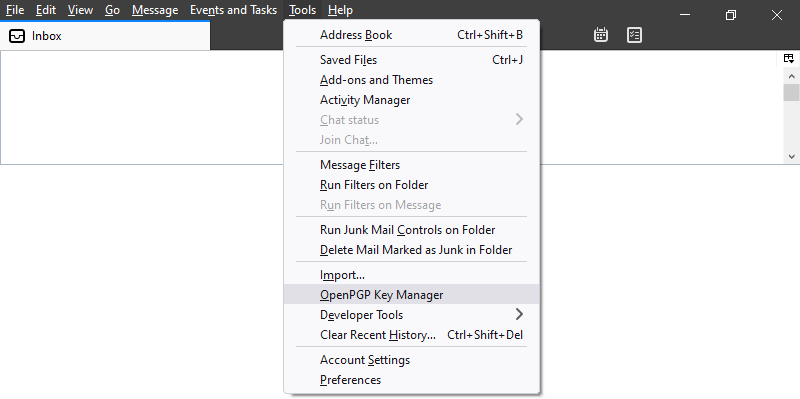
From the 'OpenPGP Key Manager' window import others' public keys as needed
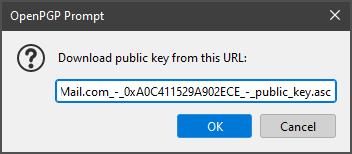
Click 'Edit' > 'Import key(s) from URL'.
 From URL.png)
For my BryanFRitt@HotMail.com email, you can get this URL by right clicking on this link and then choosing to 'Copy Link'.
My
BryanFRitt public key (older, but still good)
My
BryanRitter44 public key (newer)
Then paste in the url to the public key, and click 'OK'. (repeat as needed)
Then go to 'Generate' > 'New Key Pair' > ...

Choose the email to create the key for, expiry time, etc...
(If your less picky on security, and don't want to mess with this again, click on 'Key does not expire')
Then click 'Generate Key'.
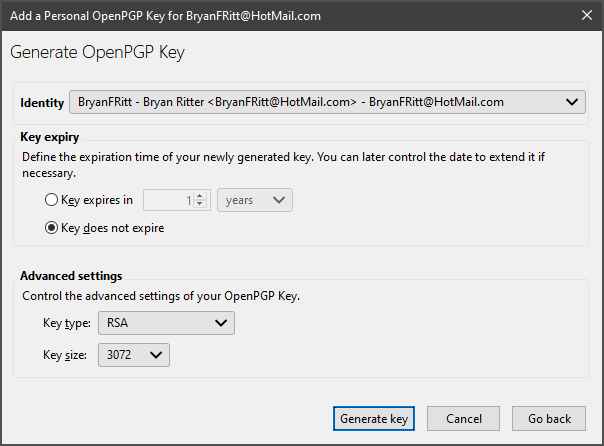
When 'Generate Key' is checked two keys will be generated. One that should be shared with the general public(public key), and one that should be kept private(private key). Don't put the private key on a phone, online, email, cloud, or someone else's computer.
(2nd) Send an email message with your public key attached to whom you want to receive encrypted emails from**:
(Note: You may want to them know ahead of time that you'll be sending them this email.)
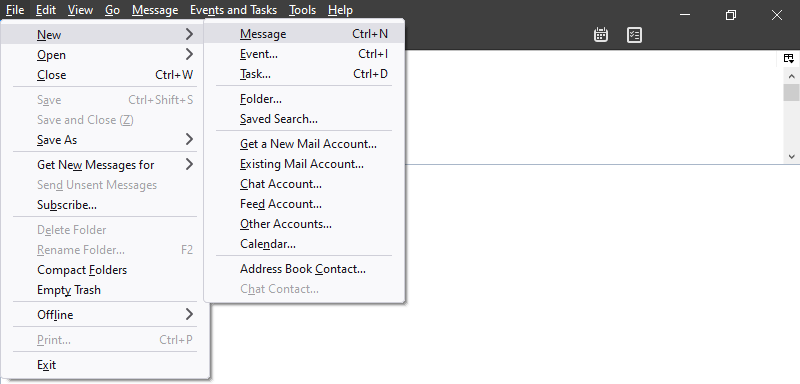
Start email message:
File > New > Message
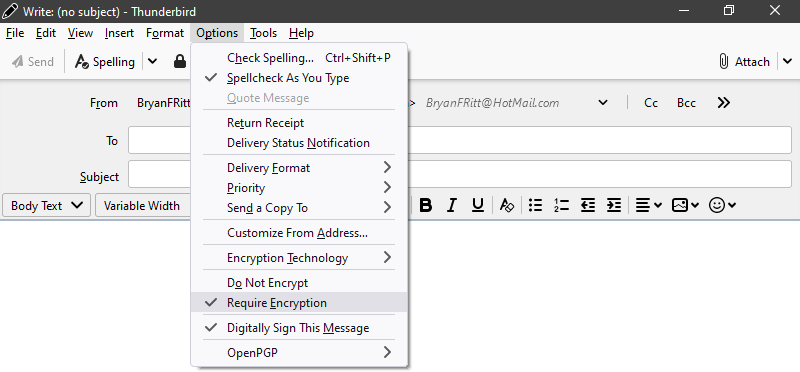
If you already have the other person's public key imported, make sure 'Options' > Require Encryption' is checked. Otherwise this will be sent unencrypted.
Attach your public key:
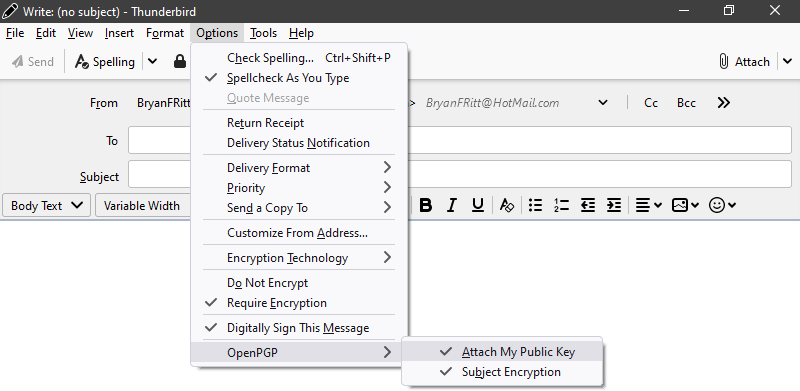
'Options' > 'OpenPGP' > 'Attach My Public Key'
(You can also choose rather or not to encrypt the subject line from this OpenPGP menu.)
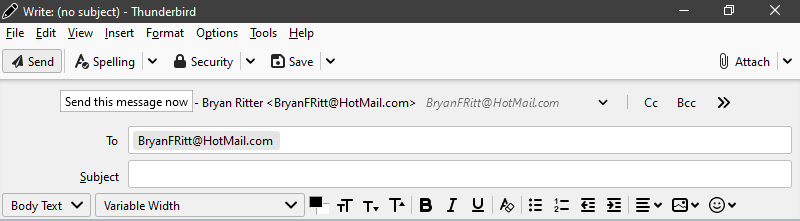
Give the email a subject and a body, then click 'Send'.
Then the recipient can import your public key, and send you encrypted emails.
Once set up, your email software can probably do these automatically.
For encryption/decryption it goes something like:
Plaintext > Encrypt with Recipient's Public Key > Cipher Text > Decrypt with Recipient's Private Key > Plaintext
For signing/authentication it goes something like:
Plaintext > Sign with Sender's Private Key > Cipher Text > Decrypt with Sender's Public Key > Plaintext
**
The public key can also be uploaded to a public key server for others to look up, etc...
For example:
I have a copy of my public key saved on
https://keyserver.ubuntu.com/
These public keys can be looked up from there by searching from there for
BryanFRitt@HotMail.com, or BryanRitter44@hotmail.com
or using the url
https://keyserver.ubuntu.com/pks/lookup?search=BryanFRitt%40HotMail.com&fingerprint=on&op=index, or https://keyserver.ubuntu.com/pks/lookup?search=BryanFRitt%40HotMail.com&fingerprint=on&op=index
, or from a Linux distribution with gpg with something like the commands:`gpg --keyserver hkp://keyserver.ubuntu.com --search BryanFRitt@HotMail.com`, or `gpg --keyserver hkp://keyserver.ubuntu.com --search BryanRitter44@hotmail.com`
Here is a copy of my BryanFRitt public key and my BryanRitter44 public key, if you'd like to go ahead and import it into your email software.
Note: PGP does not sign/encrypt email headers; Others can still see from/to/when type info. Email subject line is optional to encrypt.